Wednesday, 25 May 2016

Texturing/UVing
This is the UV snapshot of the knife. As you can clearly tell, it's layed out neatly, thus making it easier for me to texture. The UV at the top left is the blade, the UV at the top right is the handle, and the UV at the bottom is the cap of the handle. To do this, I saved the UV in Maya as a UV snapshot, in .tga format, and imported it into Photoshop. Due to the very quick and simple process, i didn't encounter any problems with it.

The image shown below is the final painted texture on top of the UV shown above. As you can see, I've painted a metallic looking texture on the blade and painted the handle a very dark colour (taking inspiration from my Photoshop drawings). I've painted the cap of the handle the same colour as the handle itself, due to them both being very similar objects. To save the texture shown below, I'll need to export it as a .tga and apply it onto each asset of the knife. I encountered a few problems with the painting of the texture, for example; I was lacking knowledge regarding a few tools in Maya, such as brush presets and brush settings. To overcome this problem, I researched and gained help from.my peers and tutors, allowing me to use more advanced tools in the process of painting.


Knife Development
After modelling two different knives and taken into account their features, I have decided to go with the blade and handle shown in the two images below. This was however, a very difficult choice as both models were very detailed and high quality models. Ultimately, the definitive choice was the correct choice in my personal opinion.

I like the style and natural unique look of the two assets - they will definitely serve as two very realistic models for my project.


I have modelled and added a leather strap to the top of the blade, which will allow me to attach the two components together (the blade and the handle) perfectly. To do this, I simply created a cylinder polygon and altered the vertexes so that they fit around the knife appropriately. Although this was a fairly simple process, altering the vertexes was a very tedious process and took a fair amount of my time up. I didn't really overcome this problem, but I learnt new techniques in Maya which will hopefully make the process a lot quicker next time.

The strap will disguise the strange texture transition between the two assets - the blade and the handle.


As for the handle of the knife, I have added a top to it. To do this, I followed a very similar process to the strap - I imported a cylinder and altered the vertexes until they were in the appropriate position, also contrasting with the rest of the knife perfectly. I didn't encounter any problems with this as it was a very simple process, and learning new techniques from the strap model has allowed me to create it quicker.

The cut in between the two assets will be disguised by the second strap that I will create separately (this strap will also include a loose piece of leather which will contain wind and gravity physics).


The strap will be a completely separate object from the rest of the knife. This allows me to attach an extra shape to it, which will act as the loose piece of leather which will blow in the wind using wind and gravity physics.


Loose Strap Physics (nCloth)
For the physics on the leather strap, I used the nCloth feature to receive this effect. To do this, I created a simply polygon plane and moved it into position, underneath the upper strap. As you can clearly see in the image shown below, the shape is fairly narrow. This process was extremely easy so no problems I found were associated with this.


I then went over to the attribute editor of the plane and edited the subdivisions accordingly - a width of 20, and a height of 50. This way, I could receive very realistic looking physics without worrying about blockiness. After doing this, I cut the shape in half and separated the two objects, which would both act as a piece of loose leather hanging from the handle.


 To actually create the nCloth feature, I simply selected the object, clicked nCloth from the options listed at the top (the FX section), and clicked Create nCloth (again, a very simple procedure so I encountered no problems here). However, if the animation at this point was played, the loose piece of leather would simply fall onto the ground, so I need to attach it to the upper leather strap...


To do this, I simply selected the vertexes of the object and shift clicked onto where it will attach to. Then, rather than clicking nCloth from the list of options across the top, I clicked nConstraint, and from the drop-down menu, I clicked Point to Surface, which will then allow me to constraint the two objects together. I did the exact same procedure with the other object. I didn't encounter any problems with this due to my prior knowledge on the matter I documented beforehand.


This is the finalised model of my knife with all assets attached, including the nCloth physics (which I had learnt beforehand). I encountered numerous problems throughout the process of modelling, such as lack of knowledge on certain features of the software. I soon fixed this problem by learning new techniques in the software from my tutor and peers.


Maya Handle Experiments

After experimenting with blade shapes in Maya, I decided to move over to the modelling of the handle, so the entire knife would be soon complete. Once again, I modelled two different handle shapes just so I could get two rough ideas, so I could pick from them later. I began modelling from the initial blade shape so the two components of the knife were attached.

The image below is my first handle experiment. Again, it is based off of my previous sketched ideas and finalised Photoshop ideas. Personally, I like the unique and natural look which as a whole makes it look professional and realistic. This experiment is possibly the one I will choose to move onto development.


The second experiment that I did is fairly different to the first experiment in terms of shape; the first handle is fairly chunky, whereas this handle is fairly narrow. Other features give it completely different look, such as an added guard and pommel. This experiment gives off a vintage look due to its sword like shape, however, many modern combat knifes still use this similar shape, according to my research on the matter.

Tuesday, 24 May 2016

Maya Blade Experiments

After I had my ideas written down and sketched, I moved over to Maya to start experimenting with blade modelling. I created a rough idea of the blade based on my initial sketches and ideas, and ultimately came up with the image shown below. The blade is a very nice shape and depicts the blade of a combat knife very well, as well as my finalised sketched ideas in previous documents. The large number of divisions helps it smooth out and look sharp when rendered.


I created another blade model in Maya just to see if any other ideas would look better. I followed a similar procedure to the first blade in terms of modelling, a procedure that I'm comfortable with. The image shown below is fairly similar to the first model, however it doesn't follow the unique and realistic look of the blade. It's still an interesting idea regardless, and I will probably take inspiration from a few features in the future.

For my project, I will consider implementing wind physics into the strap hanging from the blade, to give it a more realistic effect. To do this, I'll have to do some experimenting on Maya before-hand. I decided to create a flag since it was the first idea that came into my head - I modelled the flag pole myself, and created a simple plane with an appropriate amount of divisions.


To receive the cloth physics on the plane is a very simple process - 'nCloth' and then 'Create nCloth'. However, at this point, the plane has nothing to 'hold' onto - it would simply fall into nothing.


To create this effect, I selected the vertex at the edge of the plane, and Shift-clicked onto the flag pole. I then moved over to 'nConstraint', and then 'Point to Surface'. The result will allow the plane to clip onto the flag pole.


However, if I played the animation, the flag plane will simply drop to the ground. so I moved over to the physics settings.


To find these settings, I clicked the plane itself, and went over to 'attribute editor' where a number of assets were listed. I found that clicking 'nucleus1' would bring up a wide range of options regarding the plane itself and the physics associated with it.


I eventually found the 'Gravity and Wind' section of the attribute editor, where it allowed me to control the gravity and wind in regards to the flag plane. I found that by turning up the air density and wind speed slightly, my results would change drastically. However, it still didn't look realistic enough to pass as a flag, so I started tuning up the gravity.


Once again, I found that a level of '5.732' for gravity would not suffice, so I altered it down to a level of 1 accordingly.


The final result looked like this:
After altering the wind and gravity settings in the attribute editor, the flag animation was moving appropriately. I encountered a few minor problems with this experiment, that I didn't have the knowledge for the correct settings. However, through trial and error, I was able to find the appropriate level for a realistic result.

Monday, 23 May 2016


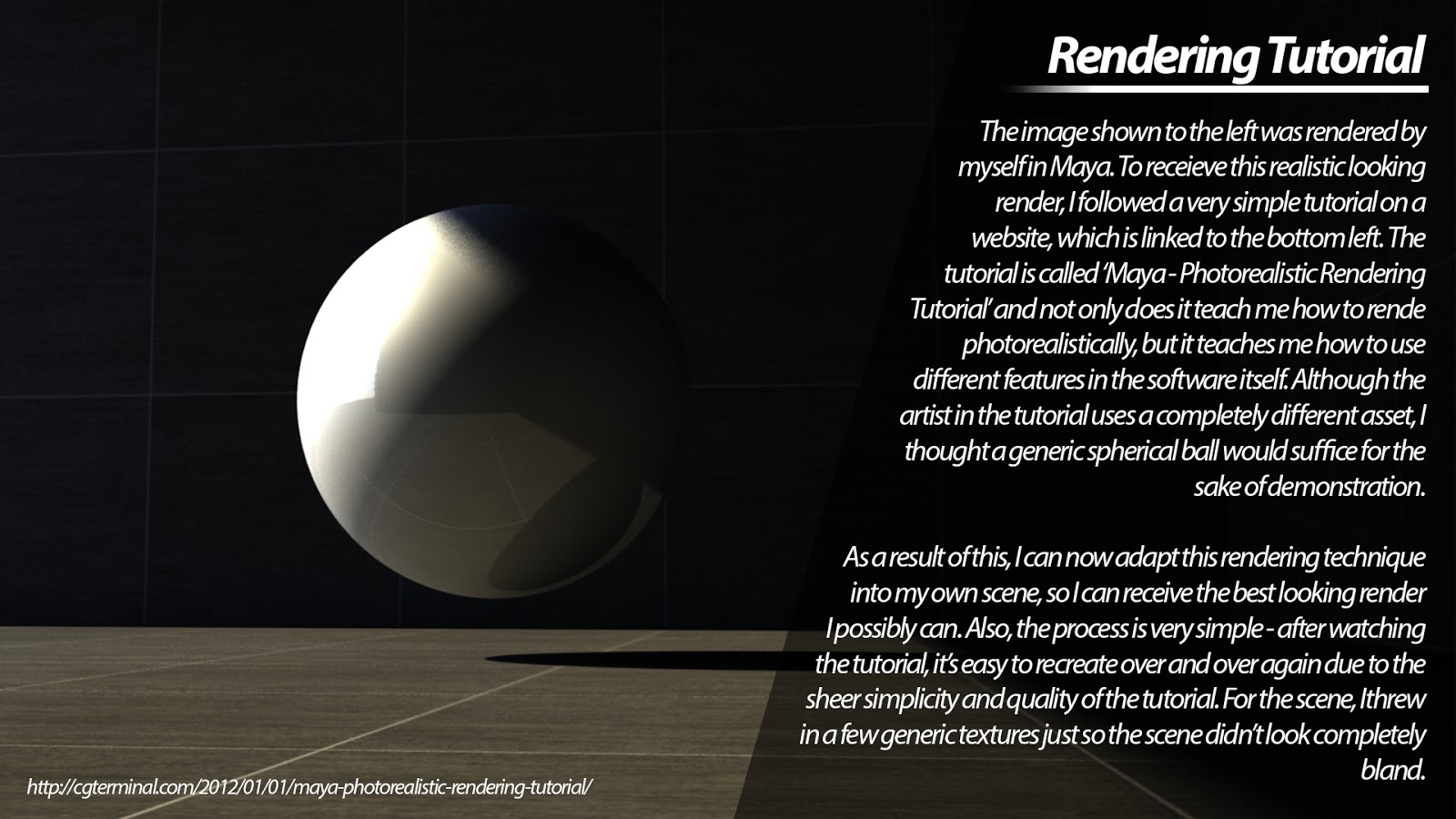
This document shows the tutorial I used to create realistic looking render. As I followed a very quick and simply tutorial, I didn't encounter any problems with creating it.

Tutorial: http://cgterminal.com/2012/01/01/maya-photorealistic-rendering-tutorial/

Monday, 9 May 2016

Software Research

Software Research
For my software research, I went over to artstation and researched four different knife artists, and the software that they used.

Jason Poland is a third-year university student studying Computer Games Design. Jason focuses on 3D environments for games especially fantasy/dark fantasy themes, but also enjoys creating weapons like knives. He's also interested in level design/layout for multiplayer purposes and creating fun/fair levels for players. In the process of making Jason's knife, he used 3DS Max to model and render, Photoshop to create the textures, and xNormal to create the bump-mapping. I like this model because it's very simple, but still looks extremely realistic and professional. The textures are high definition and it is very well modelled. However, the colours are bland and doesn't stand out to the viewer. The way he added a bumpmap into the handle has intrigued me - I could interpret this idea into my own.

Florian Heutzenroeder is a self taught real-time 3D artist, mostly focusing on hard surface props and environments. For his model, he used Blender to model, Substance Painter for the textures, and Marmoset to render. This knife is possibly one of my favourite due to the sheer realism of the lighting - the second image is an up close image of the knife and looks very well structured and realistic, due to the render and lighting quality. This artist has made high quality textures, which adds an extra level of realism, as well as a slight bumpmap on each segment of the knife - if the light was to shine across the blade, the bumps in the knife would appear. The colour are definitely an improvement from the first knife but I get a slight cartoon-y vibe from it all - personally, I think the first knife has more detailed textures than this one.

Den Ovsyannikov is an artist on artstation who has not yet provided a summary about himself but his work is still presented well enough for me to understand his ideas and workflows. According to his page, he used 3D coat to model, Substance Painter to texture and Blender to render. Once again, this knife is definitely a possible favourite and is most likely where I'm gathering my inspiration from in the future. The way he completely disregards the bland colours and finishes it off with a solid black colour is very intriguing to me - the whole knife seems to be made of metal, so perhaps adapting this idea to mine could end with interesting results. Shape wise and colour, this knife is definitely my favourite. What could be improved, however, is the texture detail and the bumpmapping-  in my opinion, they all seem flavourless.

Finally, Piotr Mierzwa. Piotr has also not yet provided a summary on his artstation page, so information about himself is unknown. He does however, provide excellent work - specifically his combat knife. For the production, he seemed to use 3DS Max to model and render, Quixel to texture, and xNormal for the bumpmapping. Piotr's knife is undoubtedly a well sculpted knife, but it unfortunately isn't my favourite out of them all. The sheer quality of the rendering reflects the light in a way that makes it look very realistic.


As part of my Photoshop experiments, I decided to look into different sky textures on Google so I could take inspiration from them. After experimenting on Photoshop, I created the four textures shown above.

The first texture simply shows a cyan-blue background with a few clouds spread across - personally, I think this texture suits the environment and lighting of my scene, due to its natural colour and personality. However, the colours could be considered quite dull - it would probably need more vibrant colours to match my scene perfectly.

The second texture is slightly similar to the first texture, however I've darkened the background to create a night setting. I've also created less clouds to show the night sky better, and incorporated a spread of stars to add an extra level of realism. Once again, this experiment could be considered dull with fairly bland colours. I could consider increasing the contrast of the colours to get realistic and professional looking skies.

For the third texture, I've experimented with a completely different setting; instead of using clouds, I've incorporated some northern lights and spread it across the setting. I've also thrown in some stars to accompany the night sky. This however, doesn't really fit the environment and feel of my scene.

Lastly, the fourth texture is my personal favourite due to its sheer simplicity and realism. For the background, I've mixed a sky blue with a crystal blue to create a gradient, and created a sun to change the mood of the texture. For the clouds, I've thrown in some generic white clouds to express the mood and feel of the texture. There's nothing really to improve on this one and the colours as a whole are perfect and match my scene appropriately.

Wednesday, 4 May 2016


Throughout the process of this experimentation, I took the time to model each and every individual piece of the car, such as the wheels, doors, headlights etc. I encountered numerous problems during the process of creating this, for example, the tutorial was sped-up, so I found it difficult to understand what the artist was doing. I encountered this problem however, through patience.


To do this, I imported a solid plane image of the Audi R8 in its side view orientation. As you can clearly see, all I would have to do is follow the individual lines with shapes. This is exactly what I did but with polygon planes. I followed the individual lines of the car to create different assets, such as the window frame, door etc. The image shows me working on the window frame so it accurately matches the image behind it.


I did the same for every single part of the car on the right half, so it can be mirrored over afterwards.


I did this until I had the entire right side of the car in shape and accurate to the original model. The image below shows this.

To complete the car, I'd need to mirror the geometry on its correct axis so it almost reflects this part of the car, thus making it complete.


To mirror the car on its correct axis, I clicked 'Mesh', and then the little box next to 'Mirror Geometry'.


After the settings window popped up, I looked at the axis that the car was orientated on - in this case, it was -X, so I changed the mirror direction to -X. I know this because, if the geometry was mirrored on the +X axis, it would mirror the car to the right, rather than to the left.


Obviously to the left is where we want it to be mirrored, so I finished my settings and clicked 'Mirror'.
After a few seconds, the car was completed and mirrored. This mirroring did however, have a few problems with it, such as an unusual line cutting down the middle. I fixed this problem by merging all of the vertexes until they were perfectly joined.


After minor fixing from the mirrored geometry process, I decided to finish up on extra details on the car, such as the Audi logo on the front and back of the car, the license plate, and the wheels.


For the Audi logo, the process was very simple. I created one ring using the polygon tools, selected it, and clicked 'Edit Mesh'. From the drop-down menu, I clicked 'duplicate' which allowed me to move each ring into position, resulting in an accurate depiction of the official Audi logo. No general problems with this as I was working with very basic shapes and basic tools.